How to set up a Custom Redirect in Coolify
With the right Dockerfile, you can quickly and easily set up a custom HTTP redirect in Coolify.
Background
I recently migrated an old Fider instance from a manual Docker install to Coolify, and I wanted to update the domain as well - with a redirect from the old domain.
Instead of performing the redirect on another server, I decided I would keep things organized and set up the redirect on my Coolify server. Additionally, I wanted a solution that wouldn't get in the way of Coolify's default installation, and wouldn't complicate things in the future. After some trial and error I landed on a solution: Spin up a new Coolify "application" that runs a simple server whose sole job is to redirect a single url.
⚠️
This example can only handle one redirect at a time.
Instructions
- Take note of the SOURCE URL (the old url that you're redrecting from) and the TARGET URL (the new url that you're redirecting to).
- Make sure that the appropriate DNS records are pointing your SOURCE URL to the IP address of your Coolify server. Check that your DNS changes have propagated at https://dnschecker.org/
- On the Coolify Dashboard click Create New Resource

- Then click Application
- On the Select a Source page, enter the following under Simple Dockerfile:
# Use an existing Caddy image as the base image
FROM caddy:2.3.0-alpine

# Expose port 80 for HTTP traffic
EXPOSE 80

# Create the Caddyfile with the desired configuration
RUN echo "{" > /etc/caddy/Caddyfile
RUN echo "  auto_https off" >> /etc/caddy/Caddyfile
RUN echo "}" >> /etc/caddy/Caddyfile
RUN echo ":80 {" >> /etc/caddy/Caddyfile
RUN echo "  redir https://targeturl.com{uri}" >> /etc/caddy/Caddyfile
RUN echo "}" >> /etc/caddy/Caddyfile

# Start the Caddy server
CMD ["caddy", "run", "--config", "/etc/caddy/Caddyfile"]
(Make sure that you change targeturl.com to your TARGET URL.)
- Click Deploy Dockerfile
- Set up the config of your new Application as follows, making sure that the URL is set as your SOURCE URL:
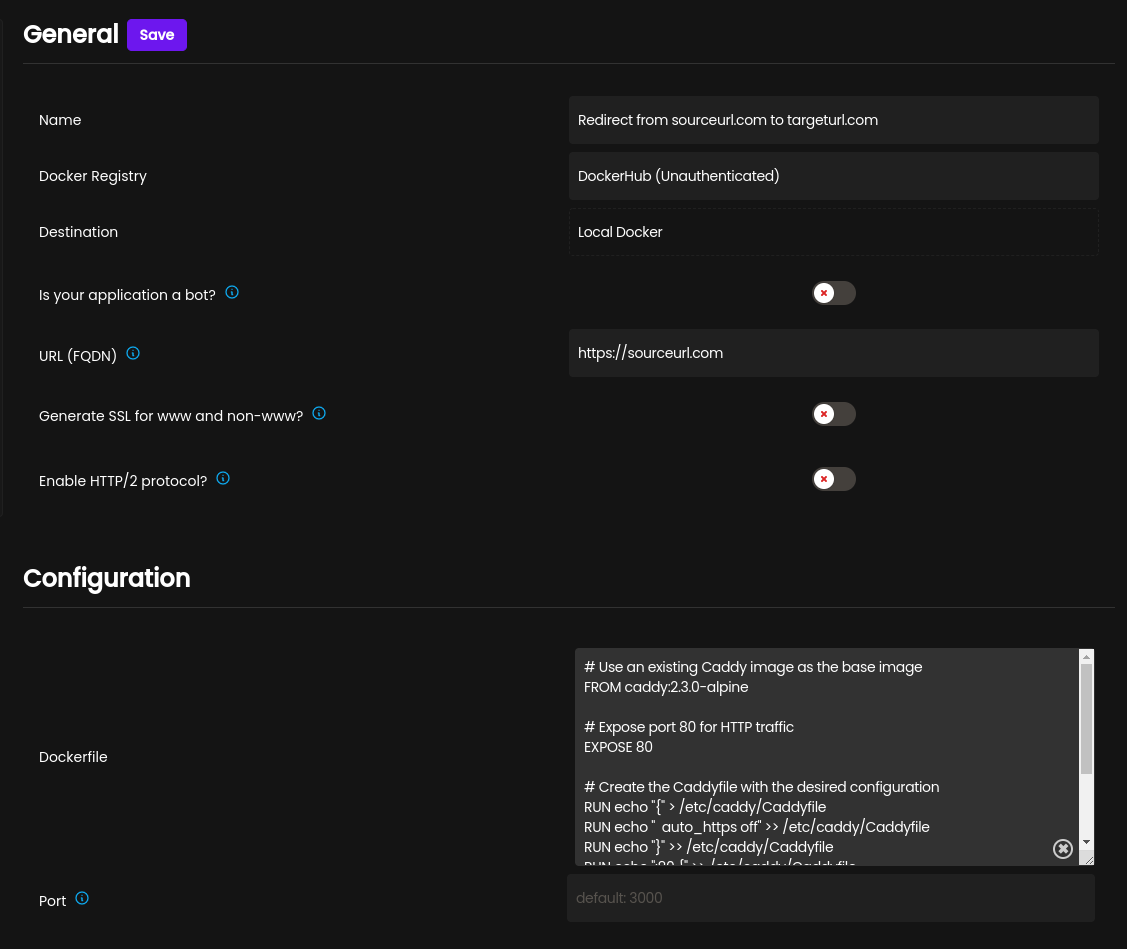
- Click Save
- Click Deploy in the upper right hand corner, and wait a minute or two for the deploy to complete.

- Click Open in the upper righthand corner, and your browser should open to the TARGET URL.
- Check if your redirect is working at https://httpstatus.io/